



"I was frustrated trying to resize photos for picture ornaments (for free). Then I found this app and I'm loving it. Thank You!"
StampslodaUnited States
Resize any photo to the exact dimensions you need. By pixels, by inches, or by preset.
Click to browse from your deviceDrop your photo here or click to browse from your device
JPEG, PNG, WEBP, HEIC
By uploading a file, you agree to PicCollage's Terms of Use and Privacy Policy.
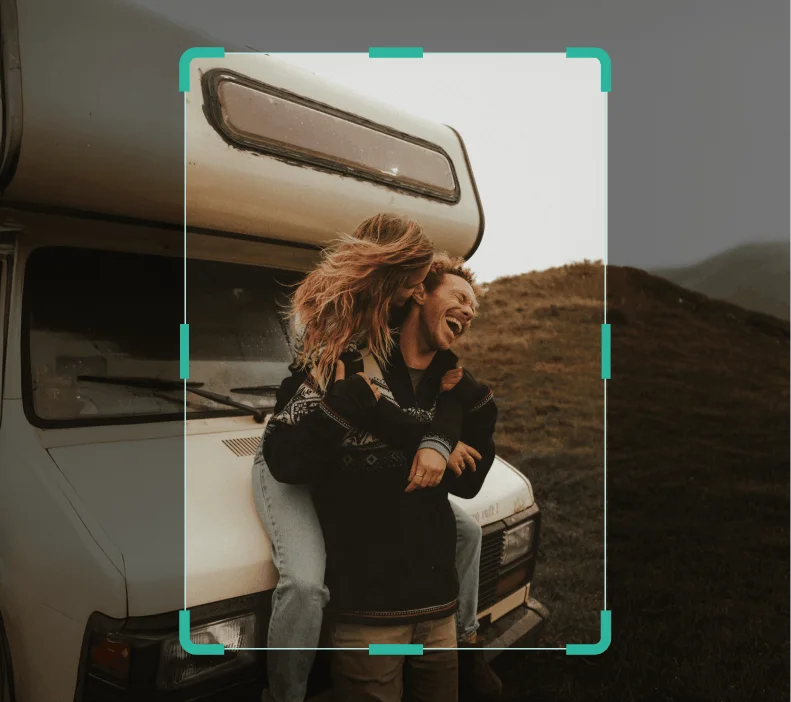
or try a sample photo
We've brought the same powerful features you love in our app directly to your browser.
HOW-TO STEPS
Step 01
📤 Upload Your Image - Drop any JPG, PNG, WEBP, or HEIC from your phone or computer. Photos from any device, any camera, any year.
Step 02
📐 Set Your New Size - Enter exact pixel dimensions, choose inches or centimeters, or pick a preset for Instagram, Facebook, YouTube, and more. Lock the aspect ratio to keep proportions intact, or unlock it to crop to a custom shape.
Step 03
💾 Download in Full Quality - Your resized image saves at the highest quality possible. No compression artifacts, no watermark, no surprise fees. Just the photo, at the size you need.
There are a hundred reasons to resize a photo. Maybe it's too large to email. Maybe it needs to be exactly 1080×1080 for an Instagram post. Maybe a form asks for a passport photo at 2×2 inches and your original is nothing close to that.
Whatever the reason, the process should take seconds. Upload your image, type in the dimensions you want, and download. This image resizer handles the rest. It works with pixels, inches, centimeters, or percentages, so you can resize by whatever unit makes sense for your situation.
You can also lock the aspect ratio if you want to scale the image up or down without distorting it. Or unlock it if you need a specific width and height that doesn't match the original proportions. Both options are there, and you can preview the result before saving.
No software to install, no account to create. It runs in your browser on any device, including your smartphone.
USE CASES
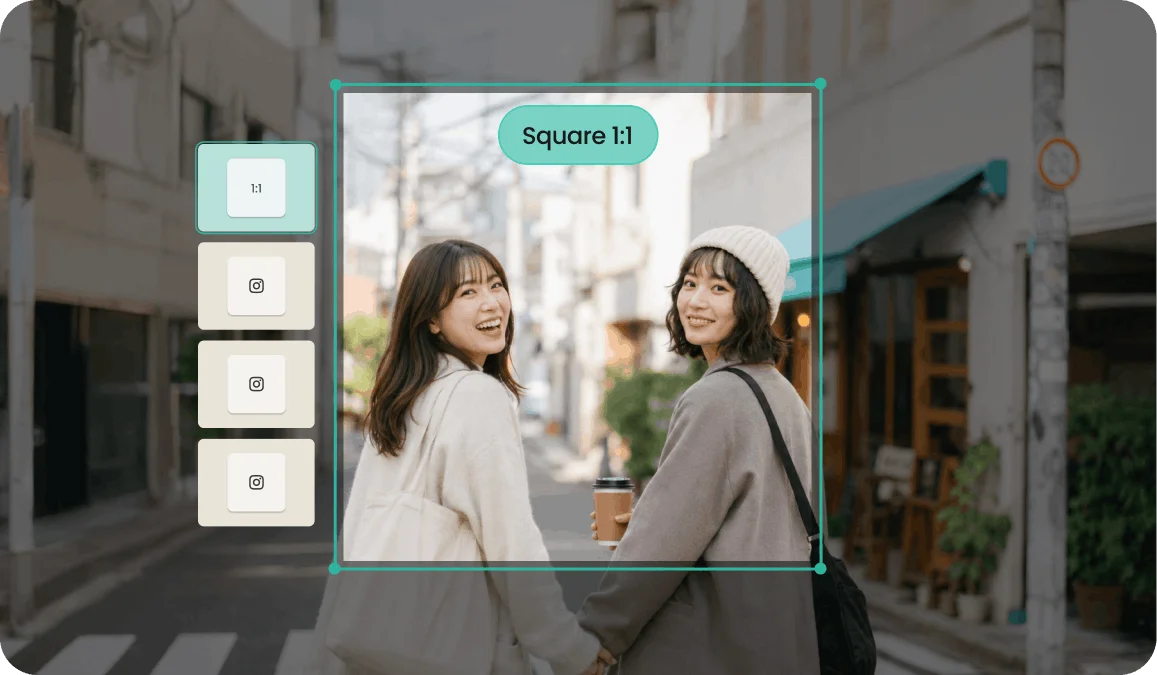
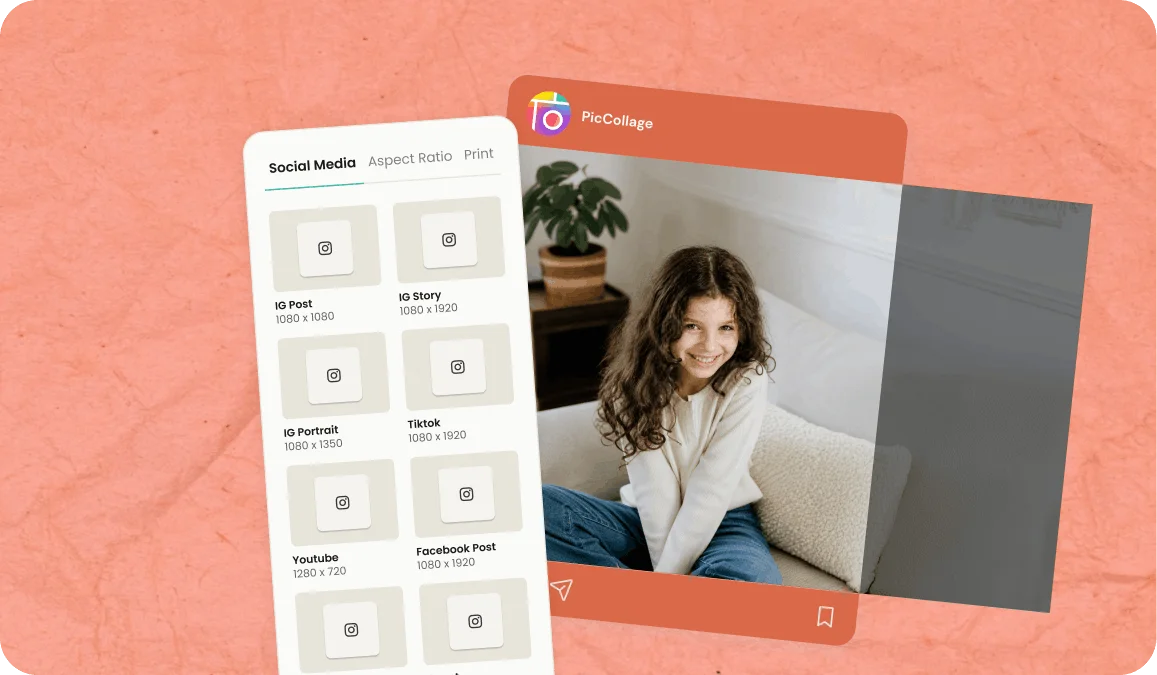
Every platform wants something different. Square for Instagram feed, 16:9 for YouTube thumbnails, vertical for Stories. Instead of guessing and cropping, resize to the exact dimensions and post with confidence.
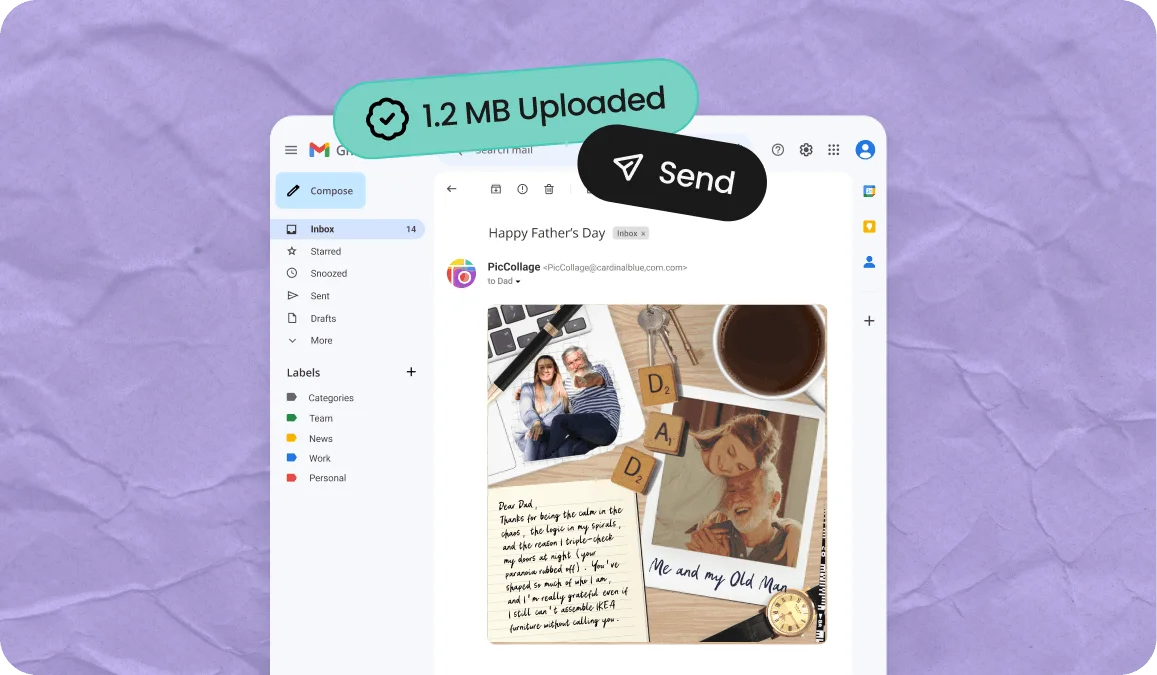
Your phone takes photos at 12 megapixels or more. Most email providers cap attachments at a few megabytes. Resize the image down so it actually sends without bouncing back or loading forever on the other end.
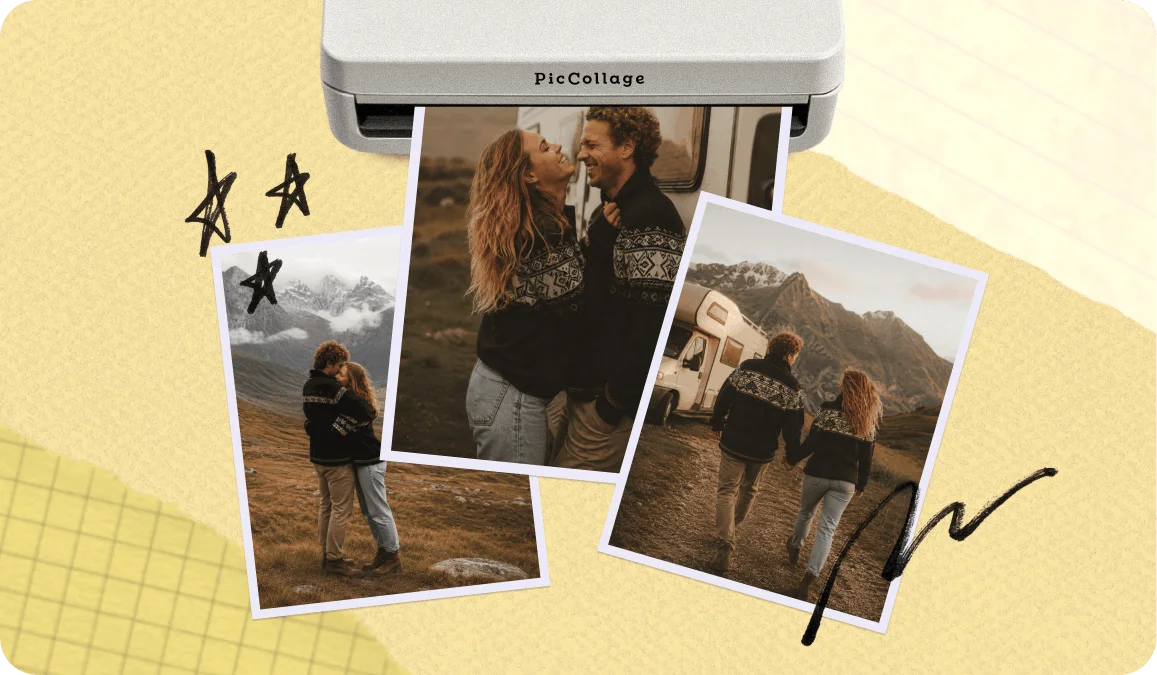
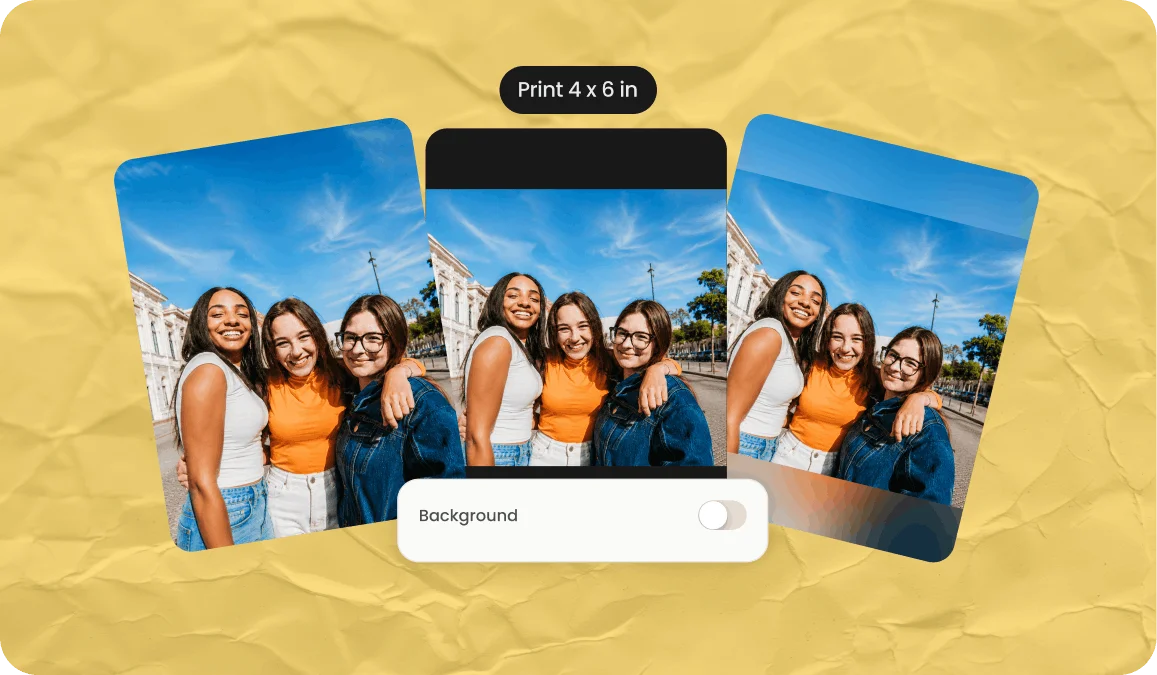
4×6, 5×7, 8×10, or something custom. Resize your photo to the print dimensions you need so there are no surprises when it comes back from the printer. What you see in the preview is what you get on paper.
Passport applications, visa forms, ID uploads, job applications. They all ask for specific dimensions. Resize your photo to the exact pixel count and move on with your day.
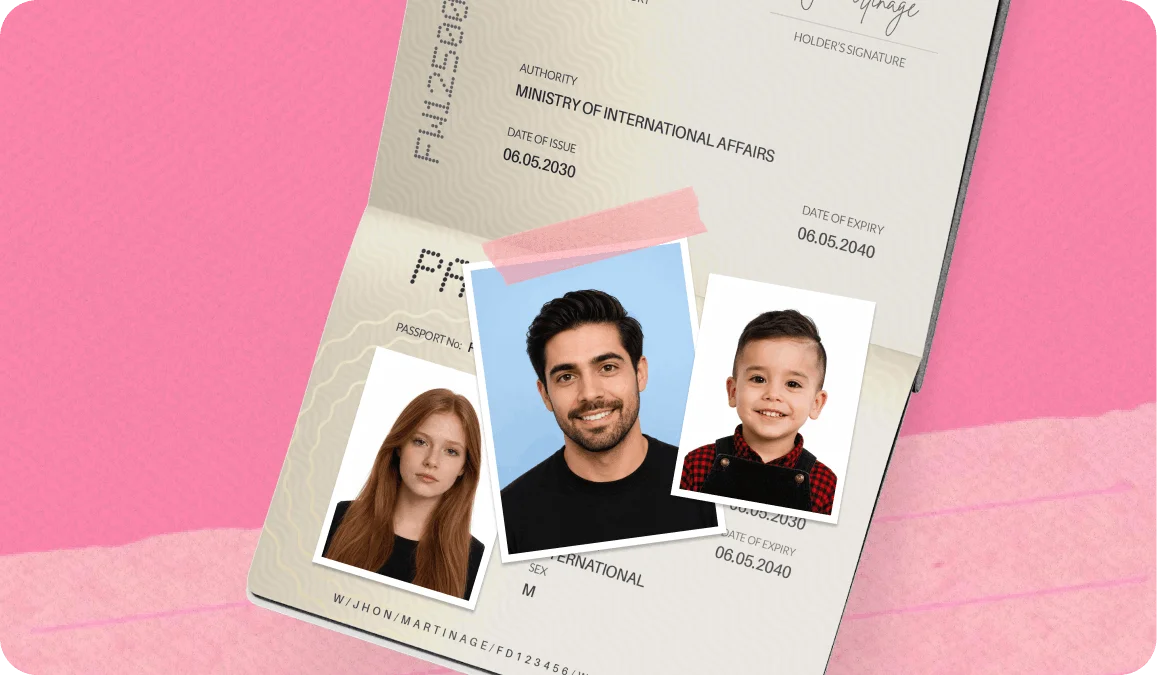
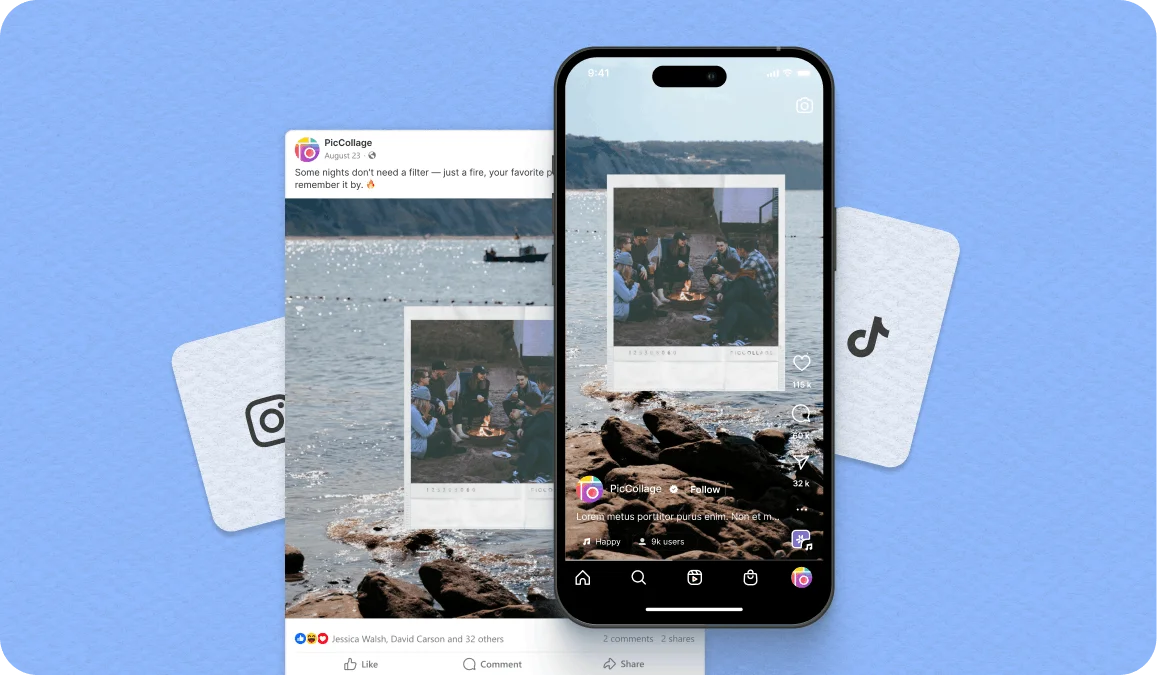
Social media platforms are picky about image sizes. Post something at the wrong dimensions and it gets cropped in ways you didn't plan for. Your face gets cut in half, the text you added lands outside the frame, or the whole thing just looks stretched.
Here are the sizes that matter most. Instagram feed posts work best at 1080×1080 (square) or 1080×1350 (portrait). Instagram, TikTok, Snapchat, and Facebook Stories need 1080×1920. YouTube thumbnails are 1280×720. LinkedIn banners are 1584×396.
This image resizer includes presets for all of these, so you don't need to memorize the numbers. Pick the platform, pick the format, and the tool sets the dimensions for you. Upload your photo, choose the preset, and download. Your image comes out at exactly the right size, ready to post without any cropping surprises.
This is the question everyone asks, and the answer depends on what you mean by "resize."
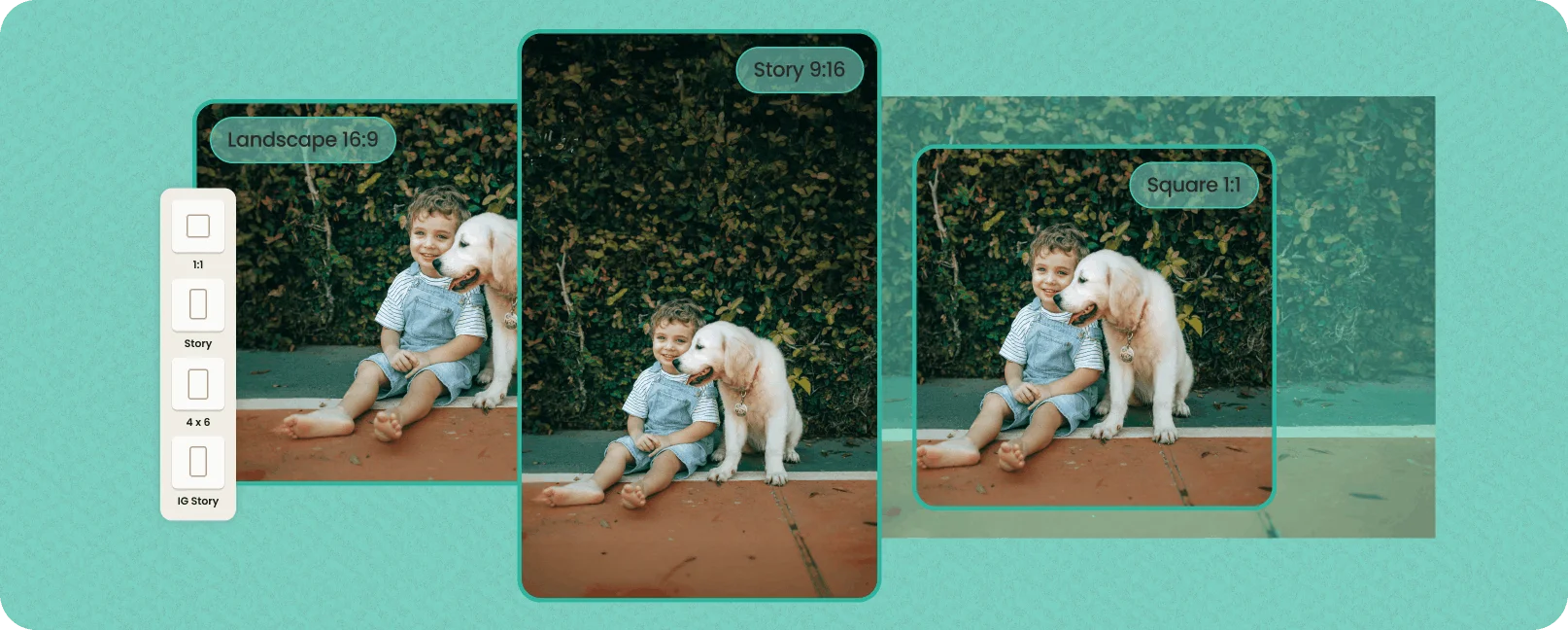
If you're making a photo smaller, you're in good shape. Scaling down from a 4000×3000 original to 1080×810 doesn't lose meaningful quality. The image still looks sharp because you're working with more pixels than you need. The resizer compresses them cleanly into the smaller dimensions.
If you're making a photo larger, that's where things get tricky. Scaling up a 500×500 image to 2000×2000 means the tool has to invent pixels that weren't there. The result will always be softer than the original, no matter which tool you use. That's just how digital images work.
The best approach is to start with the largest version of the image you have and resize down to what you need. This tool preserves as much quality as possible in both directions, and lets you preview the result before downloading so you can check the sharpness yourself.
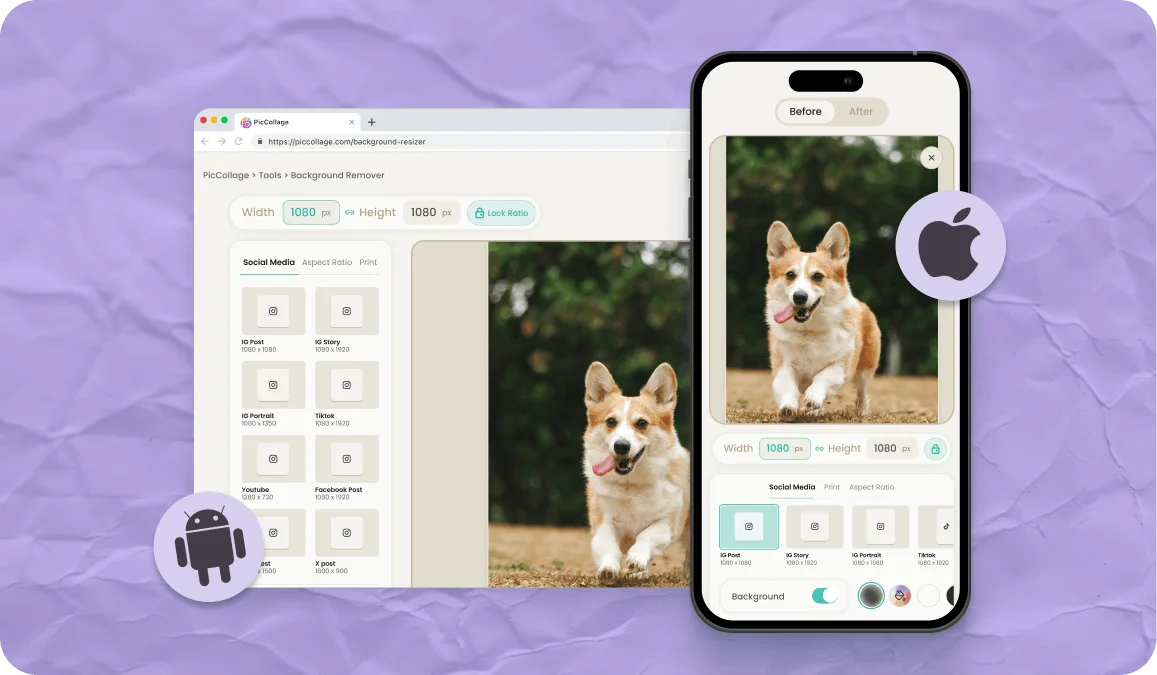
This image resizer runs entirely in your mobile browser. Open it in Safari, Chrome, or whatever you use, pick a photo from your camera roll, set the new size, and save. Nothing to install, nothing to sign up for.
It's built to feel fast and natural on a phone screen. The interface adapts to your device, the upload pulls directly from your photo library, and the download saves right back to your camera roll.
Sometimes you don't just need a smaller photo. You need a photo that looks better.
If your image needs more space around the subject (to fit a landscape banner or a widescreen wallpaper, for example), try the AI Image Extender. It generates new content beyond the edges of your photo instead of stretching what's already there.
If you need to isolate your subject on a clean background before resizing for a product listing or a profile picture, the Background Remover gives you a transparent cutout in seconds.
And if your photo is the right size but the background is distracting, the Background Blur tool adds that professional depth-of-field look without touching your subject.
All of these tools are free, run in your browser, and work together. Resize, extend, remove, blur. Use whichever combination gets you to the result you need.
FEATURES

📐 Resize by Pixels, Inches, or Preset
Type in exact dimensions, pick a unit that makes sense for your project, or choose from social media presets. The tool adapts to how you think about size.
🔒 Lock or Unlock Aspect Ratio
Keep the original proportions when scaling, or unlock the ratio to set a custom width and height. Your call, every time.
📱 Works on Any Device, Any Browser
iPhone, Android, tablet, laptop. If it has a browser, it works. No app download required for the web version.
📸 Full Quality Output
Your resized image downloads at the best quality possible. No added compression, no watermarks, no resolution caps on the free version. What you resize is what you get.
Yes. No account, no credit card, no watermark, no trial period. Upload your photo, resize it, and download the result. That's it.
TESTIMONIALS